Assistant in Drawers
You don't have to go to the TestFlair AI page to use the assistant. Open it in a drawer from the header on any page, or beside a work item you have open so the chat is about that item.
- Header drawer AI Assistant in the header, on any page
- Work-item assistant AI Assistant in an open user story, test case, test script or bug
- Same rules Same permissions, memory, attachments and approval cards as the TestFlair AI page
Which One to Use
| TestFlair AI page | Header drawer | Work-item assistant | |
|---|---|---|---|
| Open it from | TestFlair AI in the sidebar | AI Assistant in the header | AI Assistant in the item's header |
| Takes up | The whole page | A drawer on the right | A column beside the item |
| The chat is about | Whatever you ask | Whatever you ask | The open item |
| Best for | Longer sessions, rename and delete chats | A quick question while you work | Changing or reviewing one item |
All three are the same assistant. Conversations started in a drawer are saved like any other and show up in Recent Chats.
The Header Drawer
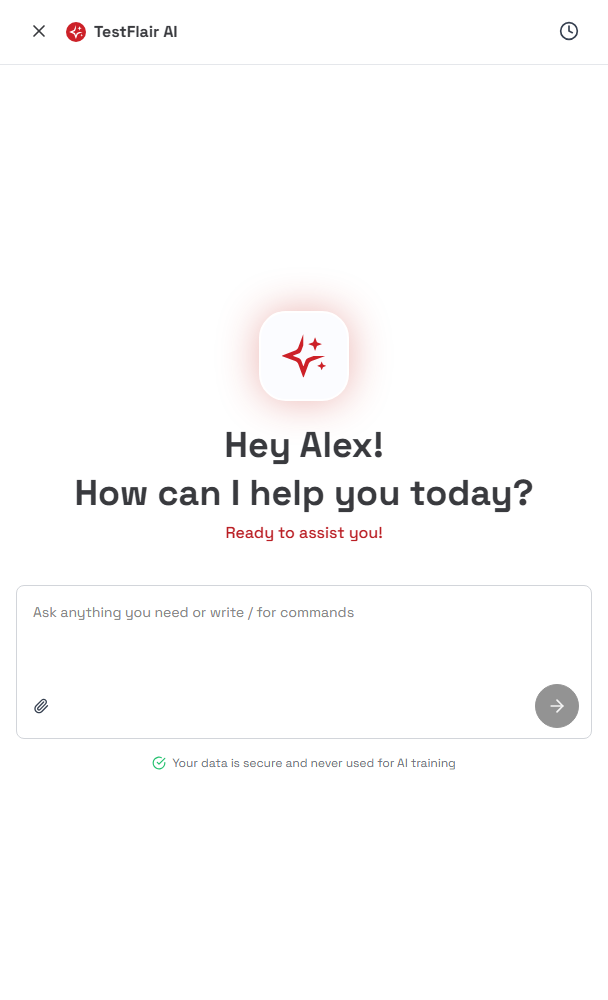
The AI Assistant button sits in the header next to the notifications bell. It is there on every page except the TestFlair AI page itself, where you already have the full chat.
- Click AI Assistant in the header
- The assistant opens in a drawer on the right. The page underneath stays as it was.
- Ask your question. Mention a project with
@if the request is about one. - Close the drawer when you're done. Click AI Assistant again to reopen it.
- The drawer keeps your chat while you move between pages, and when you close and reopen it.
- The clock icon opens Recent Chats; New Chat starts a fresh conversation.
- Switching workspace closes the drawer and clears the chat, because a chat belongs to one workspace.
- When the assistant changes something you approved, the project lists and the bug list refresh, and an open work-item page reloads, so you see the change straight away.
The Work-Item Assistant
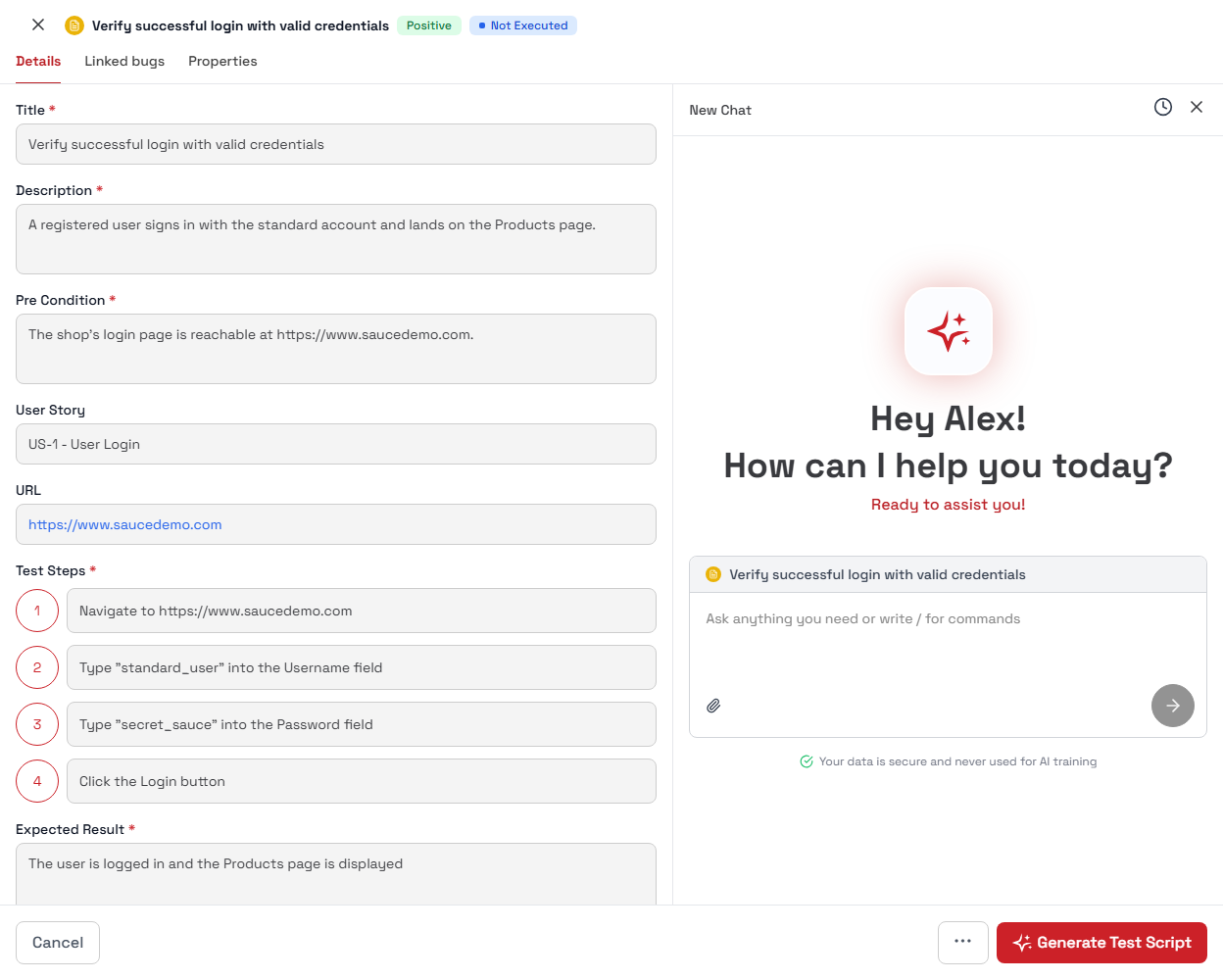
Inside an open work item, the assistant already knows which item you mean. You can say "add a negative test for an expired card" or "tighten these acceptance criteria" without naming it.
Where the button appears
| Work item | Open it from | When the button shows |
|---|---|---|
| User story | The User Stories list | On an existing story, not while adding one |
| Test case | The Test Cases list | On an existing test case, not while creating one |
| Test script | The Test Scripts list | Once the test case has a script and it isn't still generating |
| Bug | The Bugs list | On an existing bug opened in the drawer, not while creating one |
Using it
- Open the item from its list
- Click AI Assistant in the drawer's header. The drawer widens and the chat opens as a column on the right (the full screen on a tablet).
- Ask about the item. Its name shows as a fixed chip above the message box, so you know what the chat is about.
- Review any approval card and click Accept. The item reloads with the change.
- Click the close icon at the top of the chat column to hide the assistant. The item stays open.
- You can still
@-mention other work items, for example to compare this test case with another one. - The chat's title reads New Chat until you send the first message.
- Maximize is hidden while the assistant is open. Close the chat column to maximize the item.
- Closing the item's drawer ends the chat column. The conversation itself is kept: reopen it from Recent Chats.
Use the work-item assistant for edits to one item, and the TestFlair AI page for work across many items, such as generating stories for a whole document.
Troubleshooting
There's no AI Assistant button
- In a work item, check the table above: the button doesn't show while you are creating an item, or for a test script that is still generating.
There's no AI Assistant button in the header
- You are on the TestFlair AI page. Use the chat on the page.
My drawer chat disappeared
- You switched workspace, which clears the drawer. Reopen the conversation from Recent Chats in the original workspace.
The item didn't change after I accepted
- The item reloads after the assistant finishes its reply. If you rejected the card, nothing was written.
Next Steps
- TestFlair AI — Mentions, slash commands, skills, attachments and memory
- Approvals — Accept, edit or reject a proposed change
- Bugs — Bug records the assistant can create and edit