Test Case Import
Test Case Import turns test cases you already have, in a document or spreadsheet, into TestFlair test cases. The AI extracts them as written: it does not invent or rewrite cases. Nothing is added to your project until you've reviewed the drafts and chosen which to keep.
- Where Project → Test Cases tab → … (More actions) → Import
- Who can use it Project Admin, QA Manager, Tester (plus workspace Owners and Coordinators)
- Files PDF, DOC, DOCX, RTF, TXT, XLSX and CSV, up to 10 MB each
- Costs The confirmations show an estimate of 1 Flair per imported test case and 1 Flair per AI-fixed test case. You're charged only when the import or fix succeeds.
- YouUpload files
- YouConfirm cost
- AIAI extracts test casesIf it fails: nothing charged, nothing added
- ReviewReview the drafts
- ReadyAdd selectedThey become test cases in your projectRequires attentionAIEdit or AI FixThen back to review
1. Upload the file
- Open the Test Cases tab in your project.
- Click the … (More actions) button next to Create test case and choose Import.
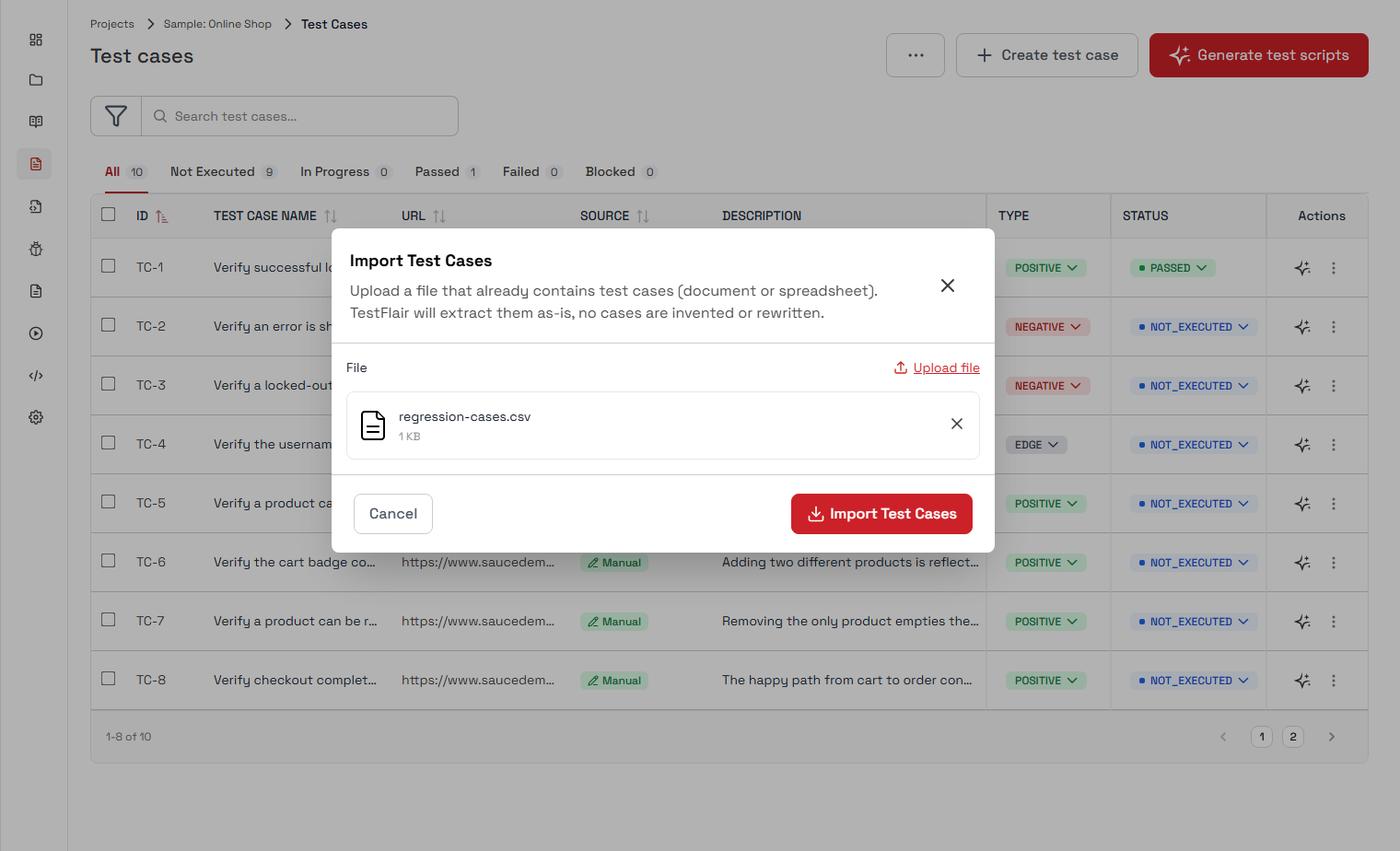
- In Import Test Cases, drop in one or more files that contain test cases. Each file uploads straight away; use Upload file to add more, or the ✕ on a file to remove it.
- Click Import Test Cases.
- Check the cost estimate in the confirmation, then click Yes, Import.
The extraction runs in the background, so you can keep working. When it finishes, the Review Imported Test Cases pop-up opens.
If the file holds no test cases, the import fails with a message saying so, and you are not charged.
Give each test case its own title, steps and expected result, and keep cases clearly separated: one row per case in a spreadsheet, or one heading per case in a document.
2. Review what was found
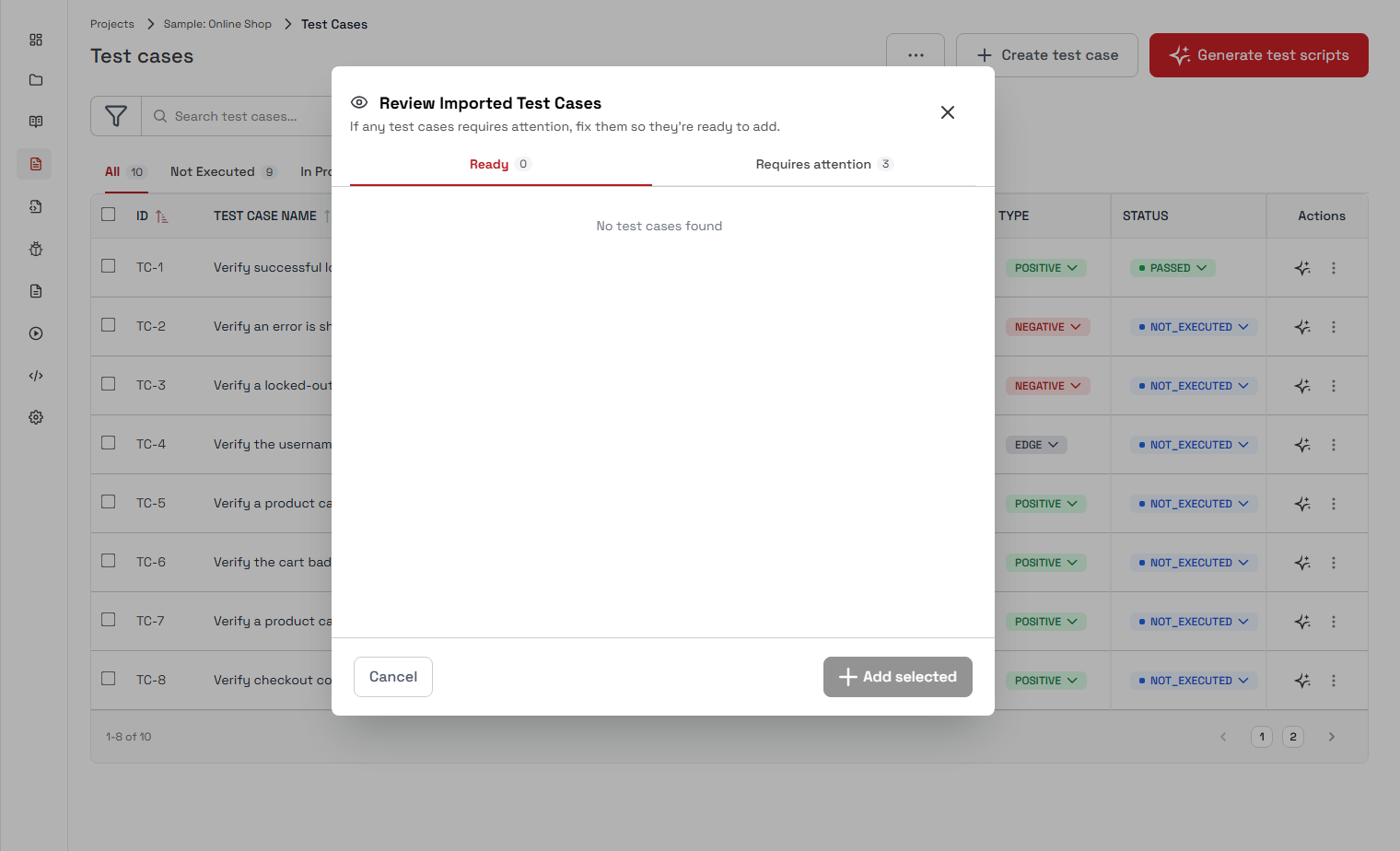
Each row shows the case's title and its type (Type : – when the file didn't state one). If some cases are incomplete, the review is split into two tabs, each with a count:
| Tab | What's in it |
|---|---|
| Ready | Complete cases, all ticked by default |
| Requires attention | Cases with an empty Title, Description, Pre Condition or Expected Result, no steps, a title longer than 200 characters, or an invalid URL |
Use Search for Item...... to find a case, and the pencil on any row to open it in the test case form and correct it by hand. Your edits are kept with the import; nothing is saved to the project yet.
3. Fix incomplete cases with AI Fix
On the Requires attention tab, click AI Fix on a row, or tick several cases and click AI Fix at the bottom. Confirm with Yes, Fix.
AI Fix fills only the empty fields (Title, Description, Pre Condition, Expected Result, steps) and keeps everything already there, including edits you make while it runs. A fixed case moves to Ready, ticked.
AI Fix can't shorten a title over 200 characters or correct an invalid URL. Fix those with the pencil.
4. Add the selected cases
On the Ready tab, untick anything you don't want and click Add selected. The confirmation tells you how many cases will be added and how many will be dropped; click Yes, Add selected.
The selected cases are added to the project with the Imported source badge, and the file's name is kept as their source. Cases you didn't select are discarded.
Refreshing or closing the review
- Refresh: an import waiting for review isn't lost. The review opens again with your edits and fixes.
- Close (✕) without adding: the import is discarded and won't reopen.
Billing
| Action | Estimate shown | When you're charged |
|---|---|---|
| Import (extraction) | 1 Flair per imported test case | Once the extraction succeeds |
| AI Fix | 1 Flair per test case fixed | Once the fix succeeds |
| Editing by hand, Add selected | Free | — |
A failed import or AI Fix ends with a message that you were not charged. See Billing & Flairs.
Troubleshooting
The import found fewer cases than the file holds
- Check the Requires attention tab: incomplete cases wait there until they're fixed.
- Make sure each case in the file is clearly separated, with its own title and steps.
Import is disabled
- Test cases or user stories are being generated in the project. Hover the … button to see why, and try again when it finishes.
- Test cases are ticked in the list. The … menu is disabled while the selection bar is showing; clear the selection first.
A file was rejected
- Only PDF, DOC, DOCX, RTF, TXT, XLSX and CSV files up to 10 MB are accepted.
Next Steps
- Test Cases: edit your imported cases, link preconditions and generate scripts
- User Story Import: import user stories the same way
- Test Data: add the values your steps use