User Stories
User Stories are concise descriptions of features from an end-user perspective. TestFlair's AI automatically generates user stories from your project data (uploaded files and text context).
What Are User Stories?
A user story follows the standard format:
As a [type of user], I want [an action] so that [a benefit/value]
For example:
As a registered customer, I want to reset my password so that I can regain access to my account if I forget it.
Generating User Stories
After uploading your project data:
- Navigate to the User Stories tab in your project
- Click Generate User Stories
- Wait for the AI to analyze your requirements
- Review the generated stories
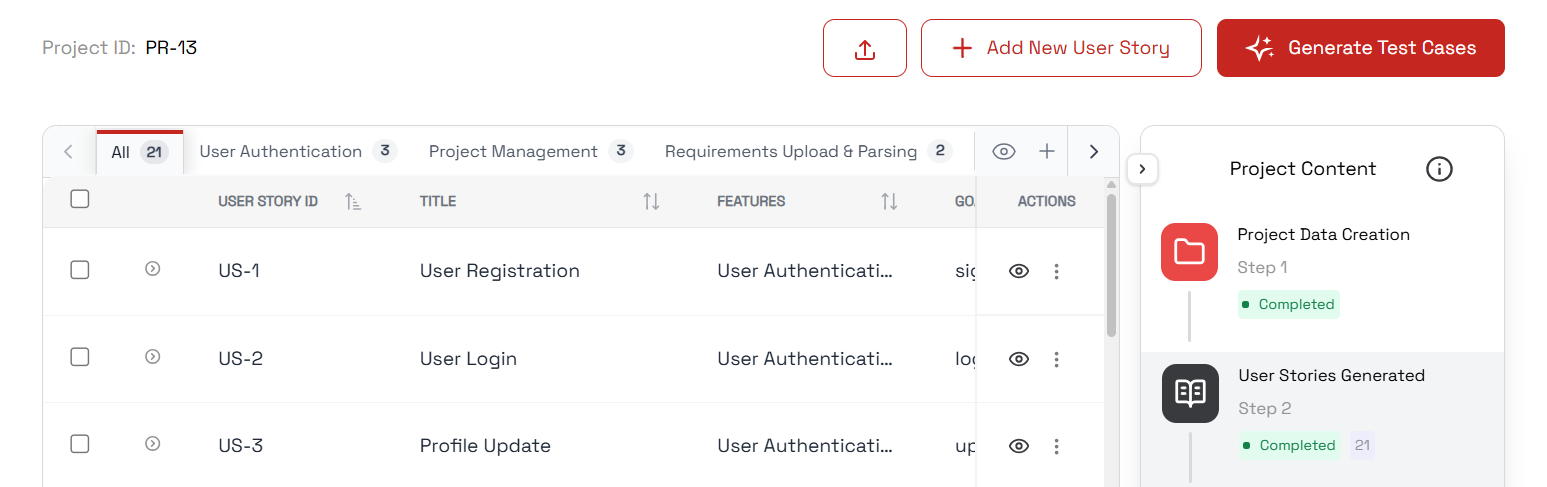
The AI extracts user scenarios, features, and requirements from your uploaded documents and text context, then converts them into well-structured user stories.
The quality of generated user stories depends directly on the clarity and detail of your uploaded requirements. See Project Data for tips on improving input quality.
Understanding Generated Stories
Each generated user story includes:
| Field | Description |
|---|---|
| Title | Brief description of the feature |
| User Story | The formatted story statement |
| Acceptance Criteria | Conditions for story completion |
Acceptance Criteria
Each story comes with acceptance criteria defining when the story is "done":
Given [precondition]
When [action]
Then [expected result]
Example:
Given I am on the login page
When I click "Forgot Password" and enter my email
Then I should receive a password reset link within 5 minutes
Sample Generated User Story
Here is an example of what the AI generates from a BRD about an e-commerce application:
Title: User Password Reset
User Story: As a registered customer, I want to reset my password so that I can regain access to my account if I forget it.
Acceptance Criteria:
- Given I am on the login page, when I click "Forgot Password" and enter my registered email, then I should receive a password reset link within 5 minutes
- Given I have received a reset link, when I click it and enter a new valid password, then my password should be updated and I should be redirected to the login page
- Given I enter an unregistered email, when I submit the forgot password form, then I should see an error message indicating the email is not found
Browsing, Searching & Filtering
User stories are organized by feature. Use the feature tabs to filter stories by a specific feature, or select All to see every story.
You can also search the list — start typing to match across a story's code, title, goal, and feature name, and the matching stories filter instantly.

Editing User Stories
- Click on any user story to open it
- Modify the title, description, or acceptance criteria
- Save your changes
Adding a New User Story
To manually add a user story:
- Click the Add button
- Fill in the user story details
- Save the story
Importing Existing User Stories
If you already have user stories written in a document or spreadsheet, you can import them verbatim instead of generating them — see User Story Import.
Direct import is a Beta feature and may not be visible on every account.
Troubleshooting
Low-quality stories?
- Improve your uploaded requirements with more detail
- Add specific user scenarios and flows
- Include validation rules and error scenarios in your project data
Exporting User Stories
Export your user stories to an Excel spreadsheet for external sharing or review:
- From the user stories view, click the Export button
- A
.xlsxfile is downloaded containing all user stories with their details and acceptance criteria
Next Steps
With user stories generated:
- Test Cases — Generate test cases from your user stories
- Project Data — Improve your requirements for better stories