Bugs
TestFlair includes built-in bug tracking that integrates with your test execution workflow. Bugs can be created manually or generated automatically when tests fail.
Bug List
Click Bugs in the sidebar to see all bugs across your projects.
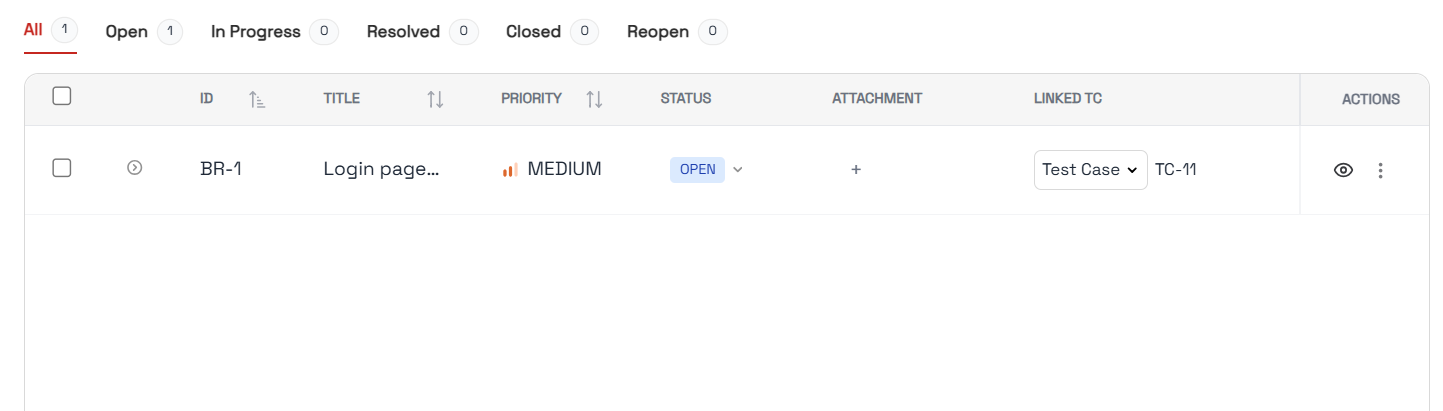
The bug list shows all bugs with their title, status, project, and priority at a glance.
Project-Scoped Bugs
Each project also has its own Bugs section, reachable from inside the project. It's the same view, pre-filtered to that project — useful when you're working in one project and don't want bugs from the rest of the workspace in the list. Everything on this page (creating, editing, exporting, attachments, linked test cases) works identically in both places.
Creating a Bug
Manual Creation
- Click Bugs in the sidebar
- Click Add Bug
- Fill in the bug details:
- Title (required) — A concise description of the issue
- Description — Detailed explanation of the bug
- Actual Result — What actually happened versus what was expected
- Note — Any additional context or reproduction notes
- Project (required) — Select the project this bug belongs to
- Priority — Critical, High, Medium, or Low
- Status — Set the initial status (Open by default)
- Linked Test Cases — Associate the bug with one or more test cases
- Optionally attach files (screenshots, logs, or other evidence)
- Save the bug

Auto-Generated Bugs
When a test execution fails, TestFlair can automatically create a bug report with:
- Title derived from the failed test
- Failure details and error messages
- Screenshots captured at the point of failure
- Link to the originating test case
Bug from Test Cases
You can also create bugs directly from the Test Cases view:
- Open a test case
- Click Create Bug in the bug drawer
- The bug form opens pre-linked to that test case
Bug Statuses
| Status | Description |
|---|---|
| Open | Bug has been reported and is awaiting action |
| In Progress | Currently being investigated or worked on |
| Resolved | A fix has been applied |
| Closed | Bug is verified as resolved and closed |
| Re-open | Previously resolved but the issue has recurred |
Each status displays with a color-coded indicator for quick identification.
Viewing and Editing Bugs
Click on any bug to view its full details. From the detail view you can:
- Edit the title, description, and status
- View and manage attached files
- See linked test cases in the Linked Test Cases tab
Attachments
Bugs support file attachments for evidence:
- Upload screenshots, logs, or other supporting files
- Preview attached images directly in the bug view
- Add or remove attachments when editing
Linked Test Cases
The Linked Test Cases tab on each bug shows which test cases are associated with it. This helps trace bugs back to specific test scenarios.
Exporting Bugs
Export your bugs to an Excel spreadsheet for external reporting or sharing:
- From the bug list, select the bugs you want to export (or export all)
- Click the Export button
- A
.xlsxfile is downloaded with all bug details
AI Bug Suggestions
When a test execution fails, TestFlair can use AI to analyze the failure logs and automatically suggest bug reports. These suggestions include pre-filled titles, descriptions, and failure details derived from the execution results. You can review and accept the suggestions or modify them before saving.
AI bug generation is a Beta feature and may not be visible on every account.
See Test Execution for more on running tests and handling failures.
Jira-Linked Bugs
If your project is connected to Jira, bugs can be imported from and synced with Jira issues. Imported bugs show a Jira Source link back to the original issue and a Synced badge. See Jira Integration.
Pushing Bugs to GitLab or GitHub
If your workspace is connected to GitLab or GitHub, you can push a project's bugs out as issues in one step. See GitLab & GitHub.
Next Steps
- Test Cases — Manage test cases and link them to bugs
- Test Execution — Run tests and auto-generate bugs from failures
- Collaboration — Comment on a bug and @mention your team
- Dashboard — View bug priority breakdown across projects