Test Cases
Test Cases define the specific conditions and steps to verify that your application works correctly. TestFlair generates test cases from your user stories.
What Are Test Cases?
A test case is a set of conditions or variables used to determine whether a system behaves as expected. Each test case includes:
- Preconditions — What must be true before testing
- Test Steps — Actions to perform
- Expected Results — What should happen
Generating Test Cases
After your user stories are ready:
- Navigate to the Test Cases tab in your project
- Click Generate Test Cases
- Wait for the AI to create test cases from your user stories
- Review the generated test cases
Test Case Structure
Each generated test case contains:
Header Information
- Test Case ID — Unique identifier (e.g., TC-1)
- Title — Description of what the test verifies
- Type — Positive, Negative, or Edge (see below)
- Status — Current execution status
- Linked User Story — The user story this test case covers
Test Case Type
Every test case has a type that signals what it verifies. The type is shown as a colored badge in the test case header — click it in create/edit mode to change it:
| Type | Indicator | Verifies |
|---|---|---|
| Positive | green | The expected, happy-path behavior |
| Negative | red | Error handling and invalid inputs |
| Edge | gray | Boundary and corner cases |
New test cases default to Positive. The type is used for categorization and filtering, and it guides how TestFlair generates the corresponding test script.
Test Steps
Numbered steps to execute:
| Step | Action | Expected Result |
|---|---|---|
| 1 | Navigate to login page | Login form is displayed |
| 2 | Enter valid username | Username is accepted |
| 3 | Enter valid password | Password is masked |
| 4 | Click "Login" button | User is logged in and redirected to dashboard |
Sample Generated Test Case
Here is an example of what the AI generates from a user story about password reset:
TC-1: Verify password reset with valid email
Preconditions: User has a registered account with email [email protected]
Step Action Expected Result 1 Navigate to the login page Login form is displayed with a "Forgot Password" link 2 Click the "Forgot Password" link Password reset form is displayed 3 Enter "[email protected]" in the email field Email is accepted 4 Click "Send Reset Link" Success message confirms a reset email has been sent
Filtering Test Cases
The test cases list provides several filtering options:

Quick Filters
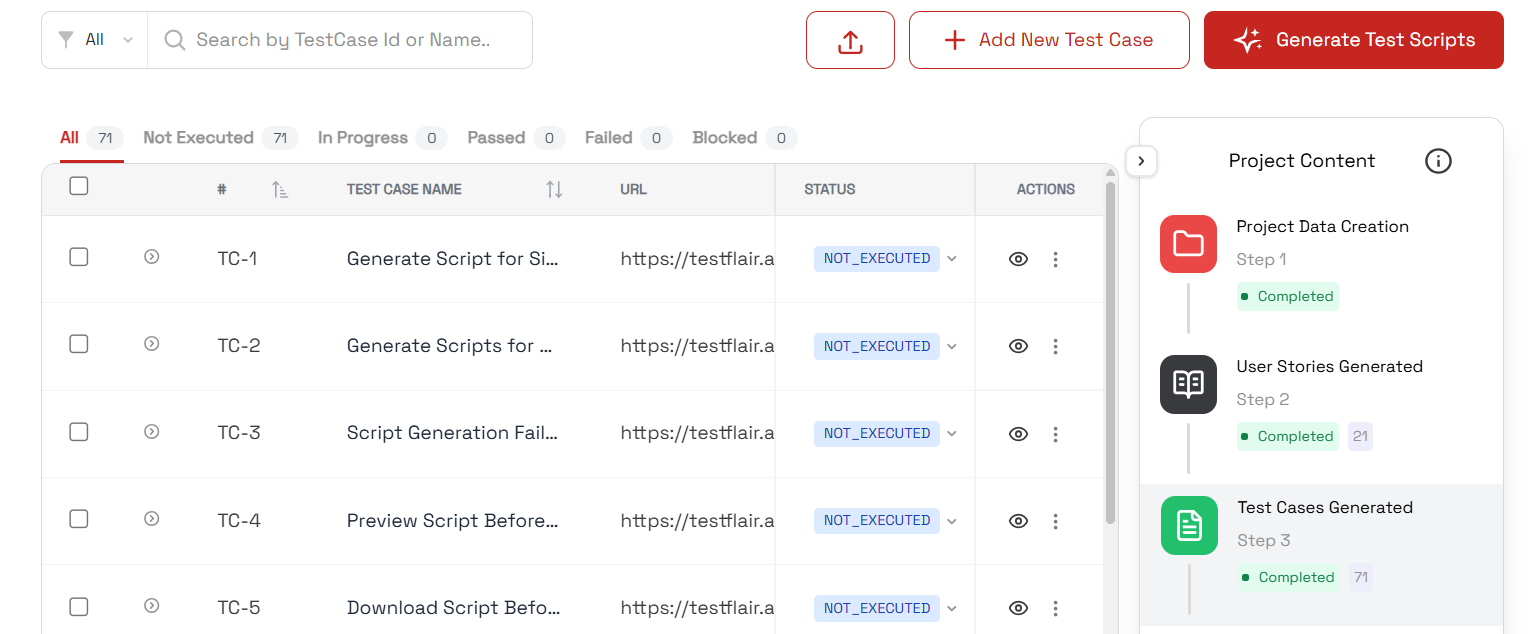
- Search — Type in the Search by TestCase Id or Name… box to filter instantly; a suggestions dropdown shows matching cases by code and name.
- Status dropdown — Filter by: All, Not Executed, In Progress, Passed, Failed, Blocked. Each option carries a colored dot.
- Status count chips — Chips under the toolbar show live counts per status (All, Not Executed, In Progress, Passed, Failed, Blocked); click one to filter to that status.
Advanced Filter Drawer
Click the filter icon to open the advanced filter drawer with:
- Status — Multi-select checkboxes for multiple statuses
- User Stories — Filter by linked user story
- Features — Filter by feature (filtered by selected user stories)
Test Case Statuses
| Status | Description |
|---|---|
| Not Executed | Test hasn't been run yet |
| In Progress | Currently being executed |
| Passed | All steps verified successfully |
| Failed | One or more steps failed |
| Blocked | Cannot execute due to a dependency |
Managing Test Cases
Editing a Test Case
- Click on a test case row to open it in the detail drawer
- Modify any field (title, steps, expected results)
- Save changes
Creating a Test Case Manually
- Click Create Test Case
- Enter the title and description
- Add preconditions
- Define test steps and expected results
- Optionally link to a user story
- Save
Bulk Operations
Select multiple test cases using the checkboxes to perform bulk actions:
- Bulk Status Change — Update the status of all selected test cases at once
- Bulk Delete — Remove multiple test cases
- Export to Excel — Export selected test cases to an Excel spreadsheet
Linking Bugs
You can create or link bugs directly from a test case:
- Open a test case
- Click Create Bug to open the bug drawer
- Fill in the bug details — the test case link is pre-populated
- Save the bug
This links the bug to the test case for traceability. See Bugs for more on bug management.
Troubleshooting
Not enough test cases generated?
- Add more detail to your user stories
- Improve acceptance criteria
Missing scenarios?
- Add test cases manually to cover gaps
- Improve your user stories and regenerate
Next Steps
With test cases ready:
- Test Data — Define the input values your steps use
- Test Scripts — Generate executable automation scripts
- Bugs — Track bugs linked to test cases
- Collaboration — Comment on a test case and @mention your team