Test Scripts
Test Scripts are executable automation code generated from your test cases. TestFlair creates Java scripts — using either Selenium or Playwright — that you can run directly from the platform.
What Are Test Scripts?
Test scripts are automated programs that:
- Navigate to web pages
- Interact with UI elements (click, type, select)
- Verify expected outcomes
- Report pass/fail results
- Capture screenshots on failure
Generating Test Scripts
After your test cases are ready:
- Navigate to the Test Scripts tab in your project
- Click Generate Scripts (or generate a script from an individual test case)
- In the "How would you like to generate your script?" dialog, choose a programming language and an automation framework
- Review the estimated Flair cost, then confirm
- Wait for the AI to generate executable scripts
Languages & Frameworks
When generating a script you pick both a language and a framework:
| Choice | Options |
|---|---|
| Language | Java. Python appears in the picker but is disabled — Java is the only language you can generate today. |
| Framework | Selenium or Playwright |
Playwright is a modern browser-automation framework offered alongside the established Selenium engine. Pick whichever your team standardizes on.
Script Structure
Java Example
import org.openqa.selenium.By;
import org.openqa.selenium.WebDriver;
import org.openqa.selenium.WebElement;
import org.openqa.selenium.chrome.ChromeDriver;
import org.openqa.selenium.support.ui.WebDriverWait;
import org.testng.Assert;
import org.testng.annotations.*;

public class TestUserLogin {
    private WebDriver driver;
    private String baseUrl = "https://app.example.com";

    @BeforeMethod
    public void setup() {
        driver = new ChromeDriver();
        driver.manage().timeouts().implicitlyWait(10, TimeUnit.SECONDS);
    }

    @AfterMethod
    public void teardown() {
        driver.quit();
    }

    @Test(description = "TC-001: Verify login with valid credentials")
    public void testSuccessfulLogin() {
        driver.get(baseUrl + "/login");

        WebElement usernameField = driver.findElement(By.id("username"));
        usernameField.sendKeys("[email protected]");

        WebElement passwordField = driver.findElement(By.id("password"));
        passwordField.sendKeys("TestPass123!");

        WebElement loginButton = driver.findElement(By.id("login-btn"));
        loginButton.click();

        Assert.assertTrue(driver.getCurrentUrl().contains("/dashboard"));
    }
}
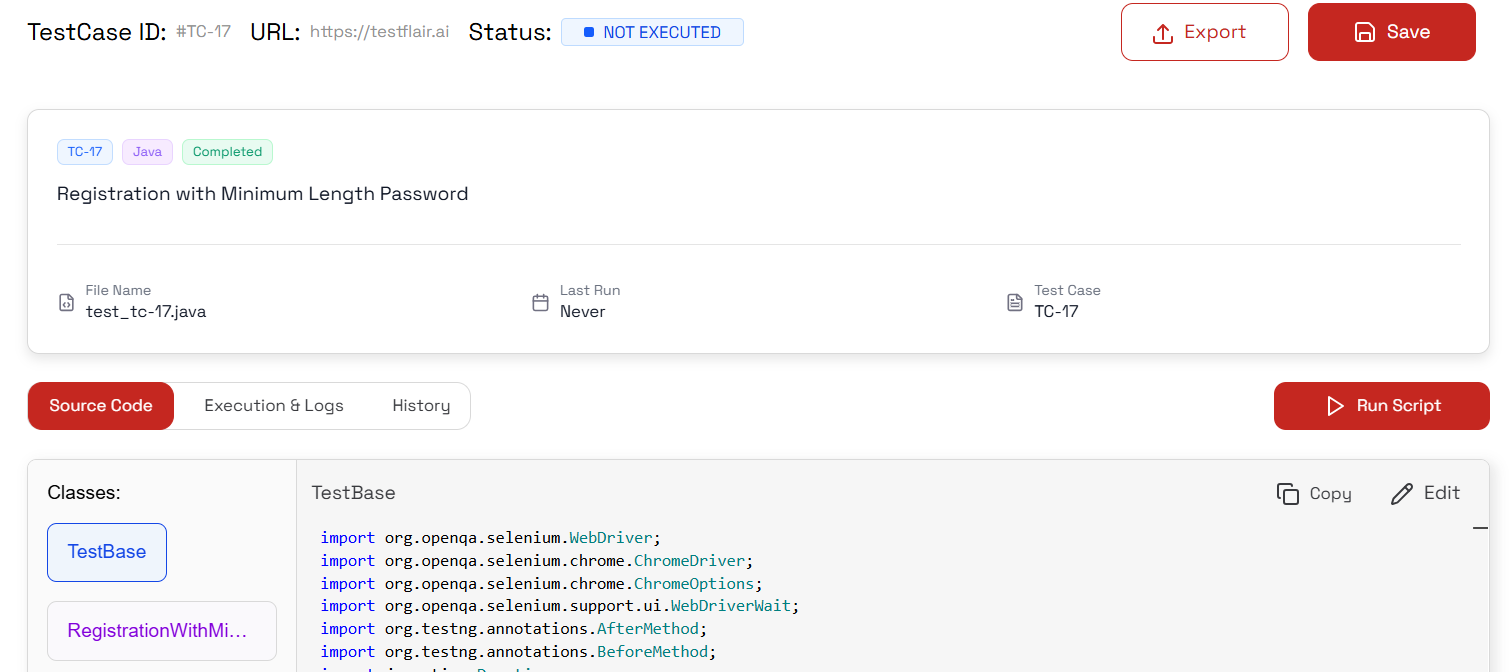
Code Editor
TestFlair includes a built-in Monaco code editor (the same editor that powers VS Code) for viewing and editing your scripts.

- Syntax highlighting for the generated code
- Edit scripts directly in the browser
- Save changes after editing
- Download scripts to use in your local development environment
Page Object Model (POM)
For projects that use it, TestFlair can generate scripts following the Page Object Model pattern. In POM mode, the generated code is split into:
- Page classes — Encapsulate page-specific elements and actions
- Test class — Contains the actual test logic using page objects
You can edit individual page classes and the test class separately in the editor.
Managing Scripts
Viewing Scripts
The test scripts list shows all generated scripts for your project. Click on any script to open it in the code editor.
Script Metadata
Each script tracks:
- The programming language used
- The linked test case
- Generation status
Next Steps
With scripts generated:
- Test Execution — Run your scripts directly from the platform
- Test Cases — Go back and refine your test cases